PixelOps by NeuronQ · Windows desktop app

The AI Image Upscaler
& Image Enhancer for Windows

Upscale photos up to 4x with real AI detail recovery, enhance them with 13 professional color-grading profiles, and batch resize, compress, or convert to WebP — one lightweight Windows app, no subscription required for the core license.

Unlimited images — no monthly cap Unlimited bulk batch processing Windows 10 / 11 · 64-bit Works fully offline 3-day free trial, no card needed
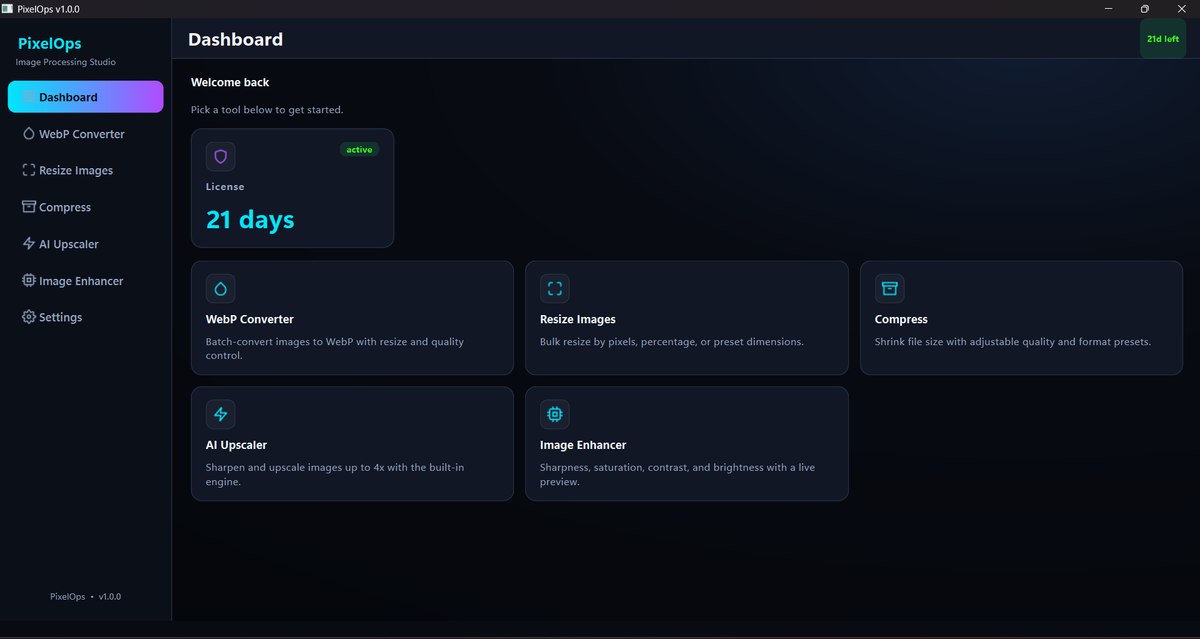
PixelOps dashboard showing license status and all tools
Unlimited Images
No monthly cap, no per-image credits, ever
Unlimited Batch Size
Point it at a folder of 10 or 10,000 — same license
5-in-1
Multiple Tools, One App
Upscale, enhance, resize, compress, convert — no switching apps
Everything included

Image upscaler, image enhancer, and more. One installer.

Every processing engine ships bundled in — nothing else to download, nothing to configure.

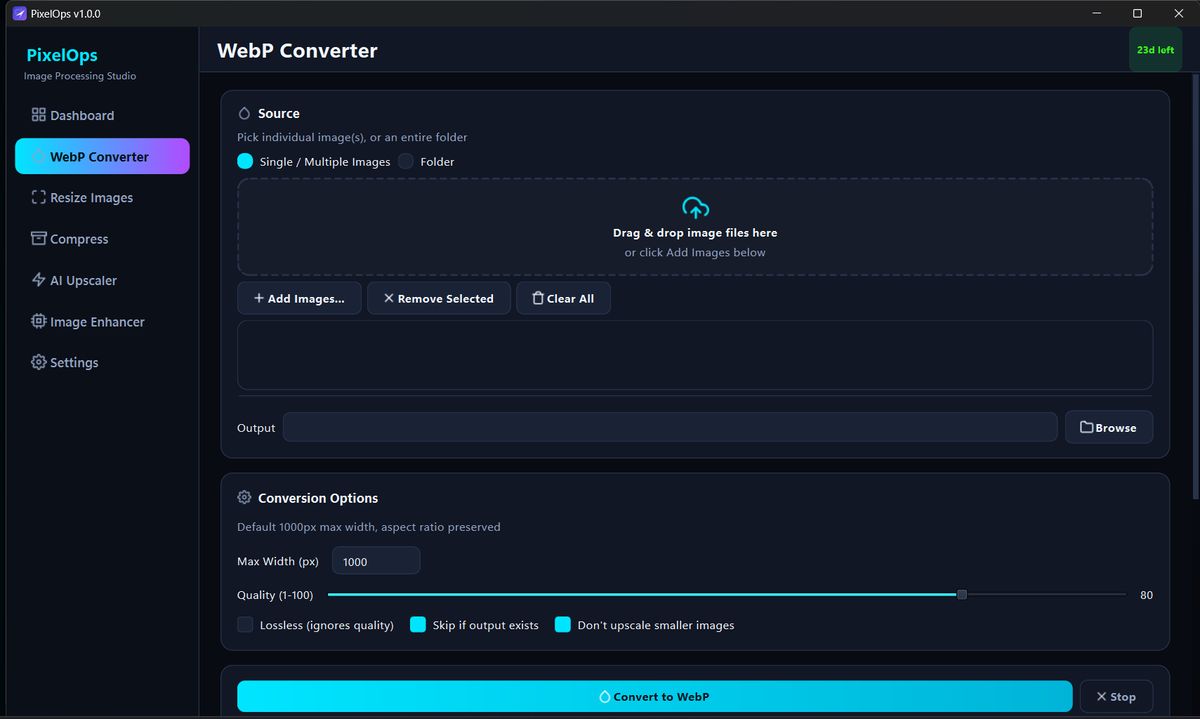
WebP Converter

Batch-convert JPG/PNG/BMP/TIFF/GIF to WebP with resize and quality control.

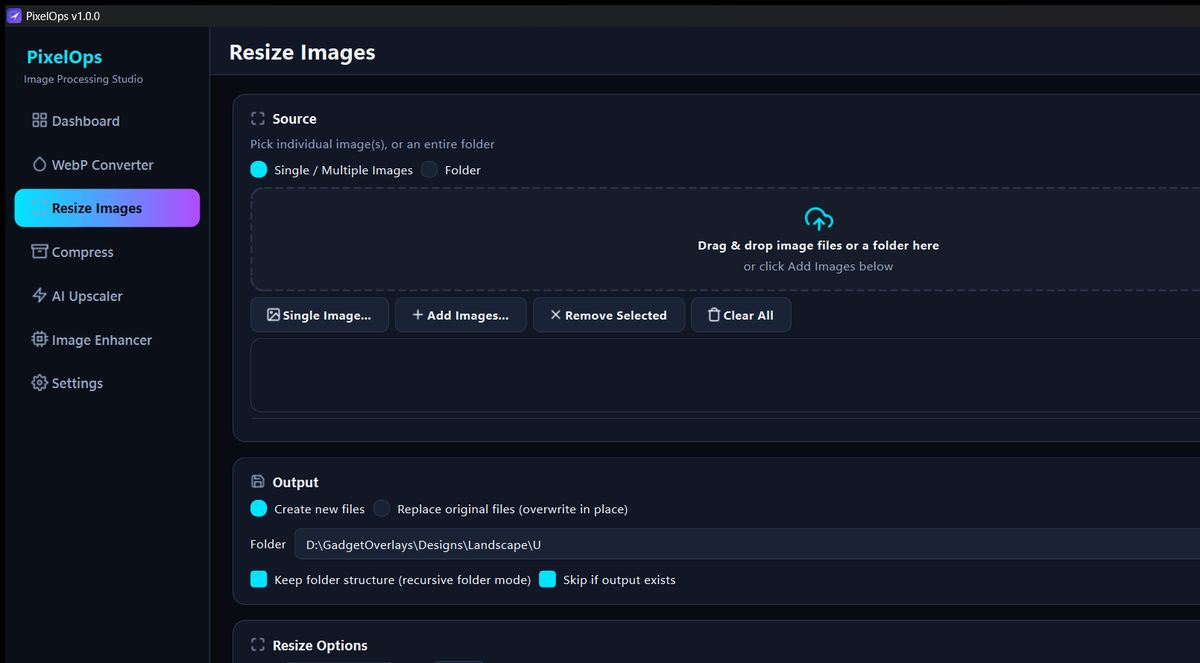
Resize Images

Bulk resize by exact pixels, or by print units (in/cm/mm) at a target DPI.

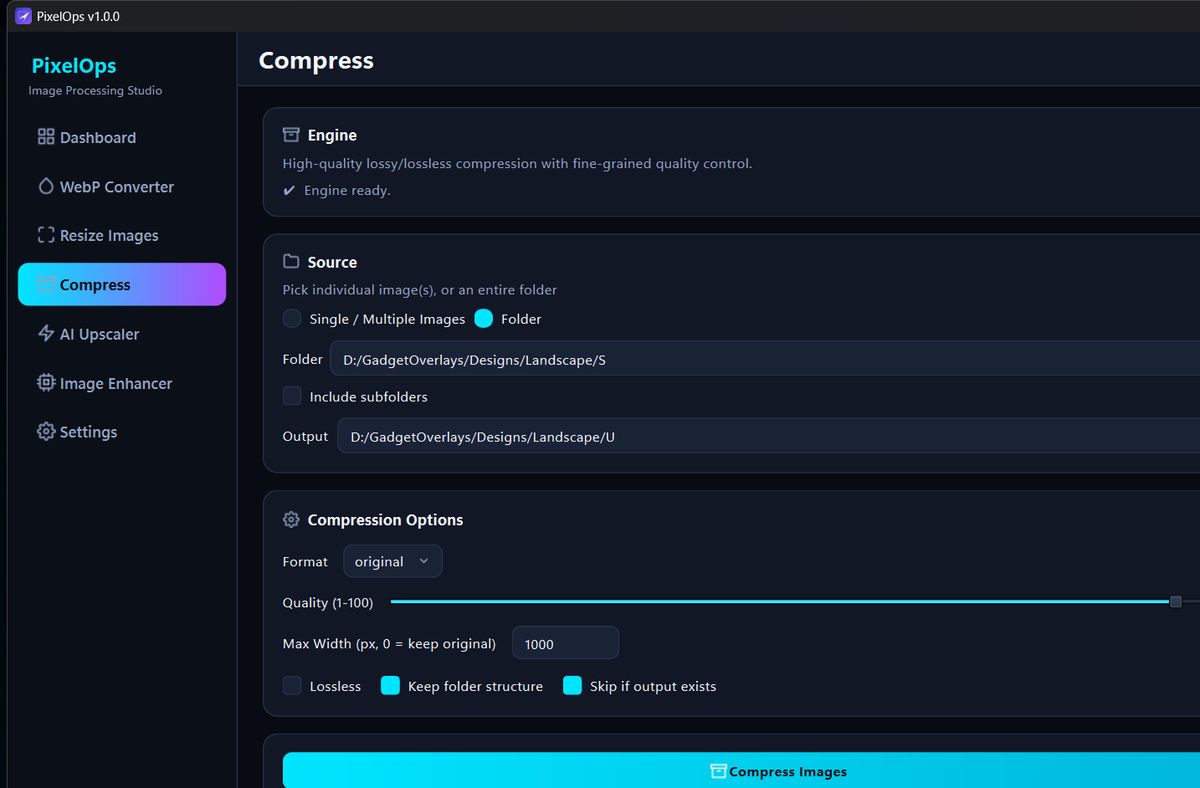
Compress

Shrink file size with adjustable quality, a lossless mode, and format conversion.

AI Image Upscaler

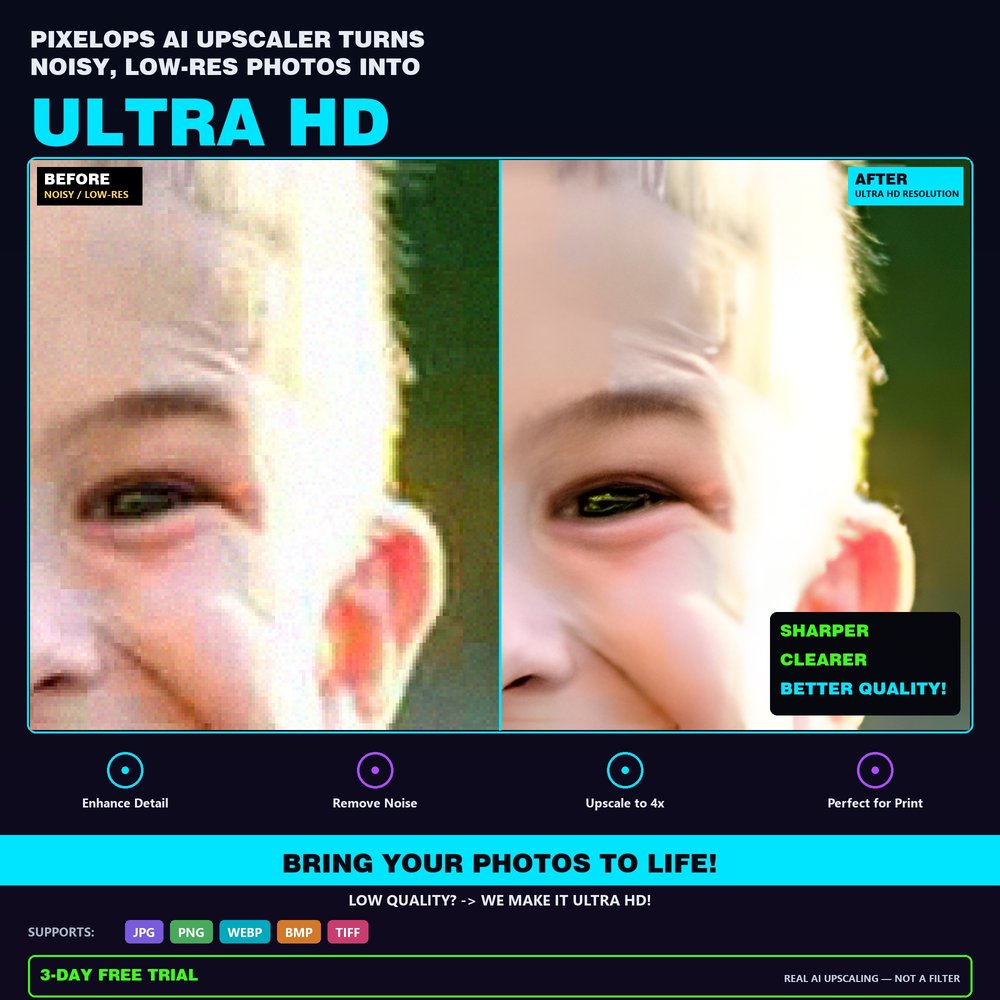
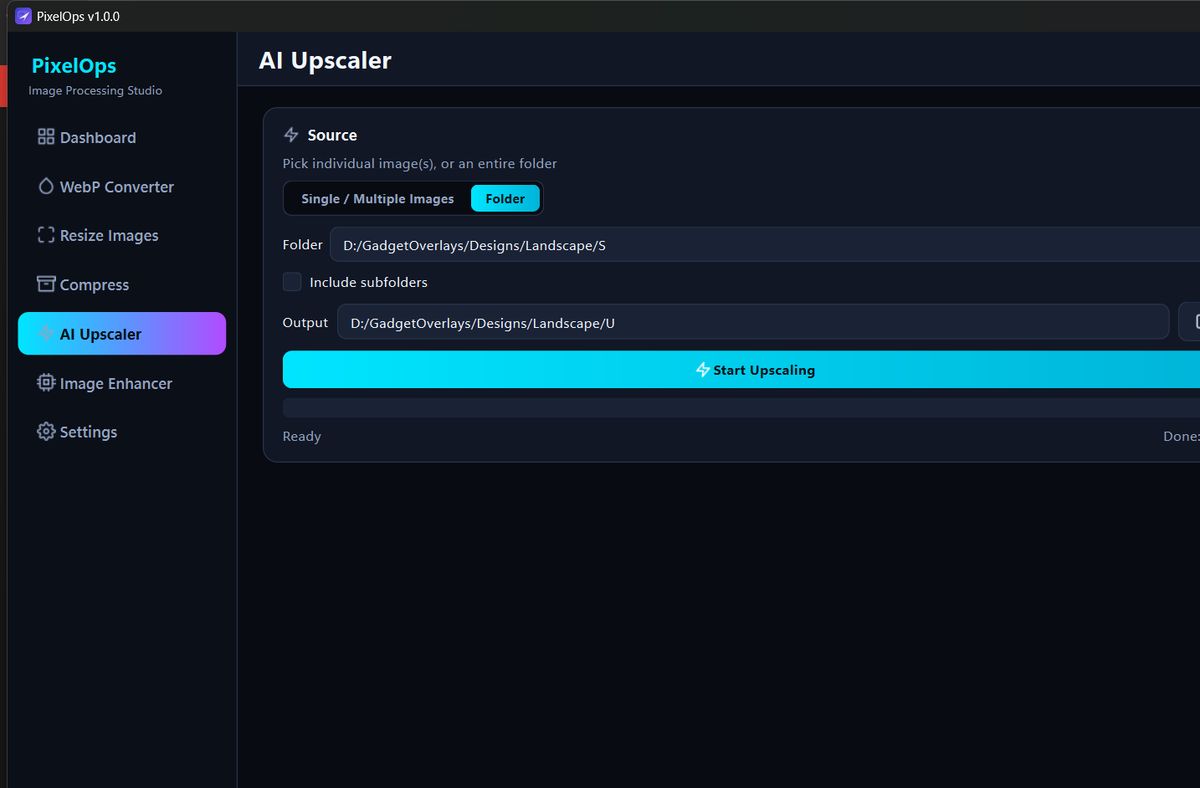
Upscale images up to 4x with real AI detail recovery — two quality presets, Sharp Detail or Balanced Quality.

Image Enhancer

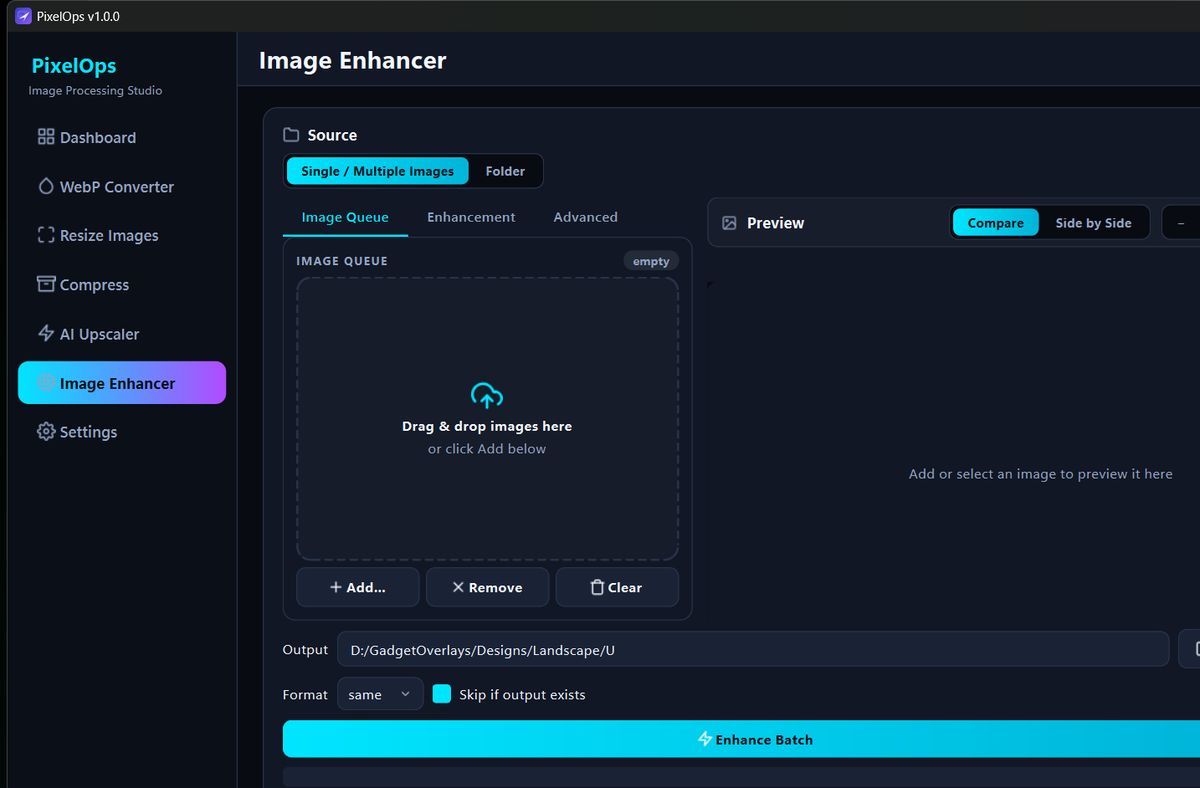
Enhance photo quality with 13 built-in color-grading profiles plus manual sliders, with a live before/after preview.

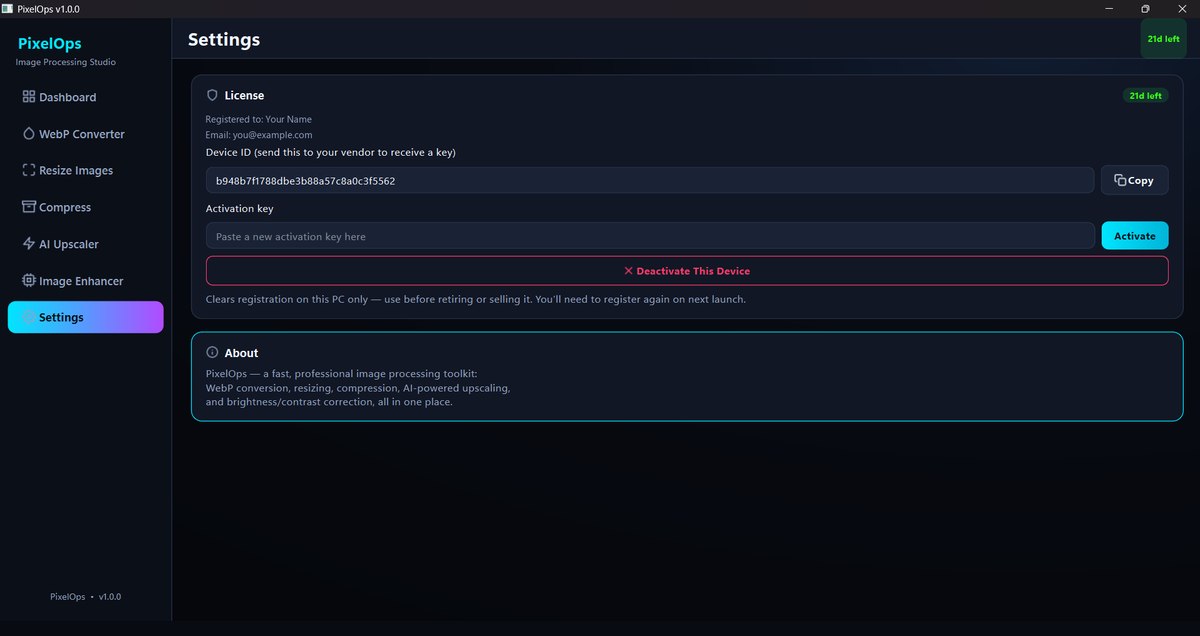
Plus built-in license management — device-bound activation, a self-serve 3-day trial, and full license detail always visible in Settings.

Every control, in full

Nothing hidden behind a paywall inside the app

Tool 01

WebP Converter

  • Batch or single-file source, whole-folder with subfolders
  • Converts JPG, PNG, BMP, TIFF, GIF → WebP
  • Max width auto-downscale on the same pass
  • Quality slider (1–100) or true lossless mode
  • Skip-if-exists and don't-upscale-smaller safeguards
  • Unlimited files per batch, no processing cap
Tool 02

Resize Images

  • Exact pixel dimensions, or print units (in/cm/mm) at a target DPI
  • Lock aspect ratio — height computed automatically
  • Create new files, or replace originals in place
  • Keep folder structure in recursive folder mode
  • Skip-if-output-exists for safe re-runs
  • Unlimited batch size, any folder depth
Tool 03

Compress

  • Force output to JPG, PNG, WebP, or AVIF — or keep original format
  • Quality slider plus a dedicated lossless mode
  • Optional max-width downscale in the same pass
  • Keep folder structure in Folder mode
  • Skip-if-output-exists for safe re-runs
  • Unlimited images per run
Tool 04

AI Image Upscaler

  • Real AI super-resolution, not a pixel stretch
  • 2x, 3x, or 4x scale, two quality presets
  • Sharp Detail preset for product shots, text, fine edges
  • Balanced Quality preset for portraits and general photos
  • Compare-slider and side-by-side preview, with zoom/pan
  • Unlimited images, unlimited bulk batch processing
Supported formats: JPGJPEGPNG WEBPBMPTIFF
Tool 05

Image Enhancer

  • 13 built-in color-grading profiles (Vivid, Cinematic, Warm/Golden Hour, Moody Dark, Cyberpunk Neon, and more)
  • Manual Sharpness, Saturation, Contrast, Brightness, Denoise sliders
  • Advanced tab: Warmth, Tint, Vignette, Soften, Grain
  • Save your own slider combination as a custom profile
  • Live before/after preview while you adjust
  • Never resizes — output dimensions always match the original
Supported formats: JPGJPEGPNG WEBPBMPTIFF
How it actually works

What an image upscaler and image enhancer really do

Not marketing fog — here's the real processing behind each tool.

AI Image Upscaler

PixelOps' image upscaler runs a real super-resolution model to enlarge photos up to 4x — reconstructing plausible fine detail (hair strands, fabric texture, text edges) instead of just stretching pixels. Two presets trade off differently: Sharp Detail favors crisp edges for product shots and text, Balanced Quality favors smoother, more natural results for portraits and general photos.

Image Enhancer

PixelOps' image enhancer combines several distinct, well-established techniques rather than one blanket filter: adaptive local contrast (CLAHE) for HDR-style detail, non-local-means denoising for genuine noise reduction without smearing texture, edge-preserving bilateral filtering for portrait skin softening, and per-channel color-temperature and tint shifts for its 13 color-grading profiles.

The real app

Every tool, at a glance

PixelOps WebP Converter screen — batch convert JPG PNG to WebP
WebP Converter
PixelOps Resize Images screen — bulk resize by pixels or print DPI
Resize Images
PixelOps Compress screen — batch image compression with quality control
Compress
PixelOps AI Upscaler screen in Folder mode — upscale images up to 4x
AI Upscaler — Folder mode
PixelOps Image Enhancer screen — 13 color grading profiles
Image Enhancer
PixelOps Settings screen — license activation and device management
Settings & License
Pricing

Try it free. Buy when you're ready.

Free

3-Day Trial

Full functionality, no credit card, no signup form.

  • All five tools, fully unlocked
  • Unlimited images, unlimited batch size — no cap
  • Starts the moment you click — not before
Download Free Trial
Full License

PixelOps — Full Version

One-time activation key, bound to your device for security.

  • Everything in the trial, no time limit
  • Unlimited images and batch processing, forever — no monthly plan
  • Priority email support
  • Free updates to future PixelOps releases
Buy Now — Email Us
Get started

Download PixelOps

Windows 10/11, 64-bit. One installer — every engine bundled in.

Includes the Getting Started guide PDF alongside the installer. Prefer just the installer? Download PixelOps-Setup.exe directly.

Windows may show a Defender SmartScreen prompt on first run (the installer isn't code-signed) — click More info → Run anyway. This is expected and doesn't affect how the app works.

Read the full User Guide — every tool explained, with screenshots.

FAQ

Questions & answers

What image formats does the AI Upscaler and Image Enhancer support?

Both accept JPG, JPEG, PNG, WEBP, BMP, and TIFF. (The Compress tool additionally accepts GIF and AVIF as source formats, and the WebP Converter accepts GIF too, since converting to WebP is its whole job.)

Do I need Photoshop or any other software?

No — PixelOps is completely standalone. Everything it needs is bundled in the installer.

Does it work offline?

Yes, fully, once installed and activated. It only reaches the internet to verify your license periodically.

What happens after my 3-day trial ends?

You'll need an activation key to keep using PixelOps. Nothing is deleted — your settings and any files you've already processed are untouched.

How do I get an activation key?

Email support@neuronq.in with your Device ID (shown in the app's Settings page) — you'll get a key back bound to that device.

Can I use it on more than one PC?

Each activation key is bound to a device count set at purchase — ask when you email us if you need more than one device.